Last updated: November 4, 2026 · By Sanket Goyal
To stop doomscrolling at night, make the phone harder to use at bedtime instead of relying on willpower. Set a schedule that silences notifications, add an app limit or schedule for the apps that pull you in, and charge the phone away from your bed. Both iPhone and Android have built-in tools for all three.
Willpower fails at 11:40 pm. I know, because mine does. The trick is to decide once, in the afternoon, when you are thinking clearly, and let the phone enforce it later. This guide walks through the exact settings, with menu paths, plus the habits that make them stick.
Why night scrolling is so hard to stop
Feeds have no natural ending. There is no last page, so your brain never gets the “done” signal. Add bad news, a tired mind and a dark room, and one quick look becomes forty minutes.
Picture a nurse coming home from a night shift, or a freelancer who finally sat down at 10 pm. Both feel they have earned a little scroll. Neither planned to still be awake at midnight. That gap between plan and reality is what the settings below close.
Note: I am not a doctor, and this is a habit guide, not medical advice. If poor sleep is hurting your health or mood for weeks, talk to a healthcare professional.
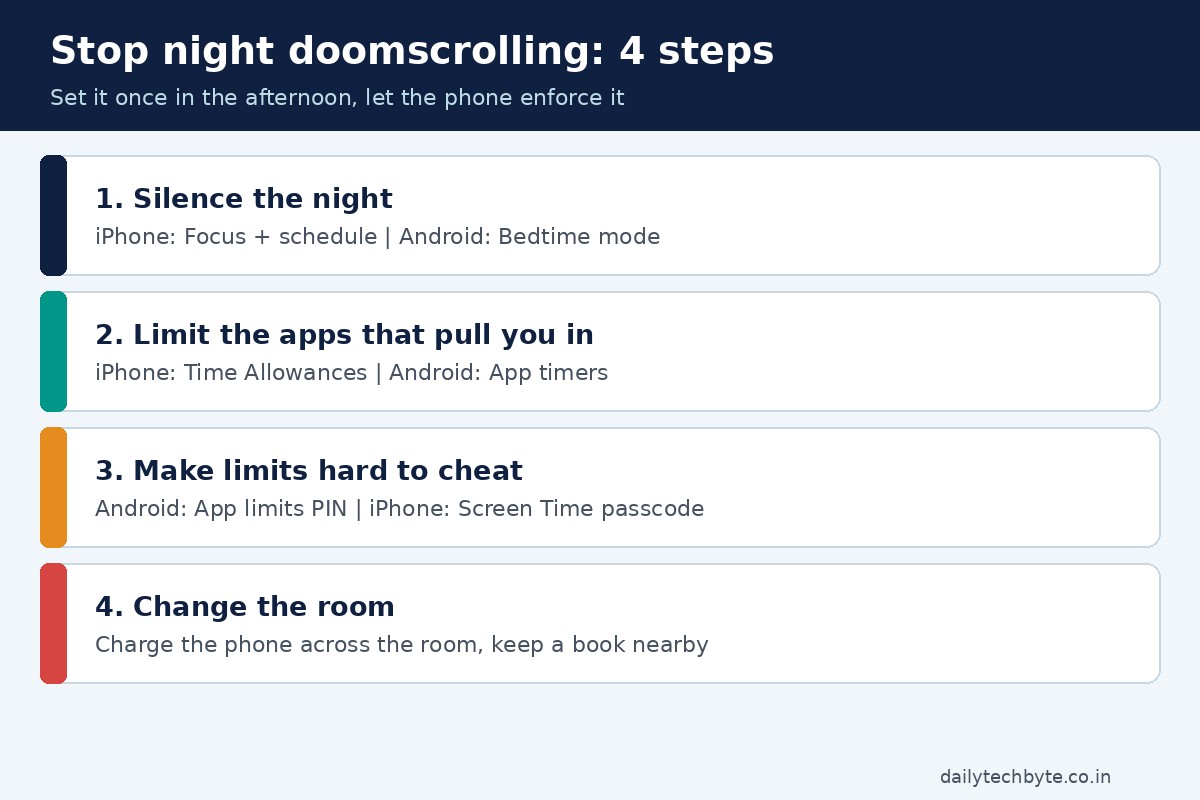
Step 1: Silence the night, not the whole phone
Most late-night scrolling starts with a buzz. Fewer buzzes, fewer reasons to pick the phone up.
iPhone: set up a Focus with a schedule
- Open the Settings app and tap Focus.
- Tap a Focus such as Do Not Disturb, Sleep, Personal or Work.
- Tap People and Apps to choose who and what may still reach you. Use “Allow Notifications From” for the few people who matter at night.
- Tap Add Schedule to have the Focus switch on automatically at a set time, at a location, or while you use a certain app.
- Under Options, you can also darken the Lock Screen while the Focus is on.
If your emergency contact must always get through, open Contacts, pick the contact, tap Edit, then Ringtone or Text Tone, and turn on Emergency Bypass.
Android: use Bedtime mode
- Open Settings and tap Digital Wellbeing.
- Tap Bedtime mode, then Bedtime routine.
- Choose Use a schedule (start and end times and days) or Turn on while charging (set “After” and “Before” times).
- Pick your screen options: Grayscale, Keep the screen dark, Dim the wallpaper or Dark theme.
Grayscale is my favorite. A black-and-white feed feels dull fast, and dull is exactly what you want at night. Menu names can differ a little by phone brand, so use the Settings search box if you cannot find an item.
Step 2: Put a limit on the apps that pull you in
iPhone: Screen Time schedule and Time Allowances
- Go to Settings > Screen Time > Screen Time Schedule and turn on Schedule.
- Tap Add Schedule, choose the days, then set a time window (you can rename it and change the start and stop times).
- Open Time Allowances to set how long you can use categories such as Entertainment, Games and Social Media. Turn on Match Screen Time Schedule if you want the allowances to apply during the windows in your schedule.
- Use Always Allowed for apps and contacts you want available at all times, such as family or the Health app.
Older iOS versions label some of these screens differently (for example “Downtime” and “App Limits”), so look for the same ideas under Screen Time.
Android: app timers and Focus mode
- Go to Settings > Digital Wellbeing > App timers.
- Next to the app, tap Set timer and choose the daily time. When time runs out, the app closes and its icon dims.
- App timers reset at midnight. To use the app again before then, delete the timer.
- For harder blocks, open Focus mode, choose the apps to pause, and tap Set a schedule. While it is on, you cannot use those apps and get no notifications from them. Take a break lets you unpause for a set time.
You can also limit a website in Chrome: open Digital Wellbeing, tap the chart, choose Chrome, and tap Set site timer next to the site.
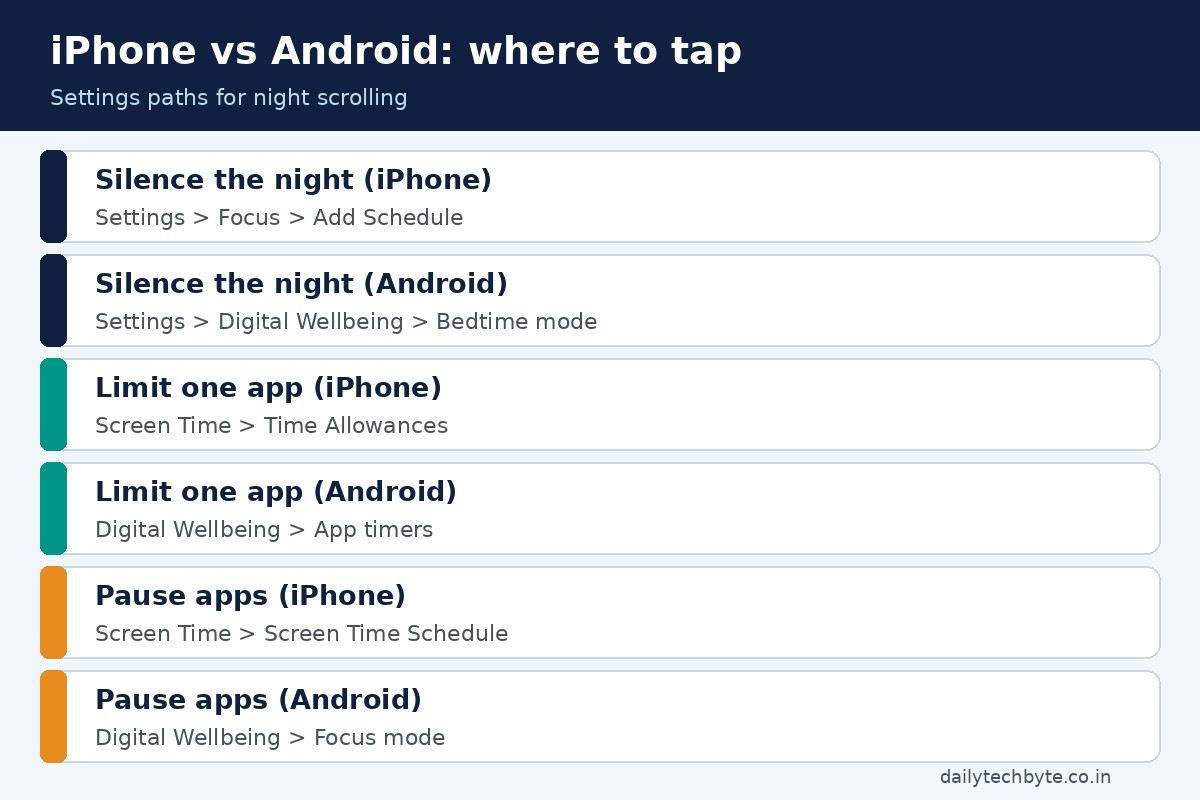
iPhone vs Android: where each setting lives
| Goal | iPhone | Android |
|---|---|---|
| Silence the night | Settings > Focus > Add Schedule | Digital Wellbeing > Bedtime mode |
| Limit one app | Screen Time > Time Allowances | Digital Wellbeing > App timers |
| Block apps for a while | Screen Time Schedule | Digital Wellbeing > Focus mode |
| Make the screen dull | Accessibility display settings (not covered here) | Bedtime mode > Grayscale |
| Always allow key people | Screen Time > Always Allowed | Do Not Disturb settings |
Step 3: Make the limit hard to cheat
A limit you can dismiss with one tap is a suggestion. Here is how to give it some teeth.
- Android: set an App limits PIN. Go to Settings > Digital Wellbeing > App limits > App limits PIN, turn on “PIN for app time limits”, confirm with your device PIN, password or pattern, and enter a 4-digit PIN. Better still, ask a partner or friend to choose it, so you do not know it. Do not share the PIN with anyone you do not trust.
- iPhone: Screen Time has its own passcode option. Setting one with someone you trust means you cannot casually lift your own limits.
I would not go this far for everyone. Start soft. If you keep overriding the limit for two weeks, add the PIN.
Step 4: Change the room, not just the phone
Settings help. Placement helps more.
- Charge the phone across the room. If you need it as an alarm, a cheap alarm clock removes the excuse.
- Use “Turn on while charging” on Android. Bedtime mode then starts when you plug in, which links the habit to a physical action.
- Keep one boring thing on the bedside table. A paper book, a notepad for tomorrow’s worries, a glass of water.
- Move the worst apps off the first screen. Friction matters. Even one extra swipe cuts impulse opens.
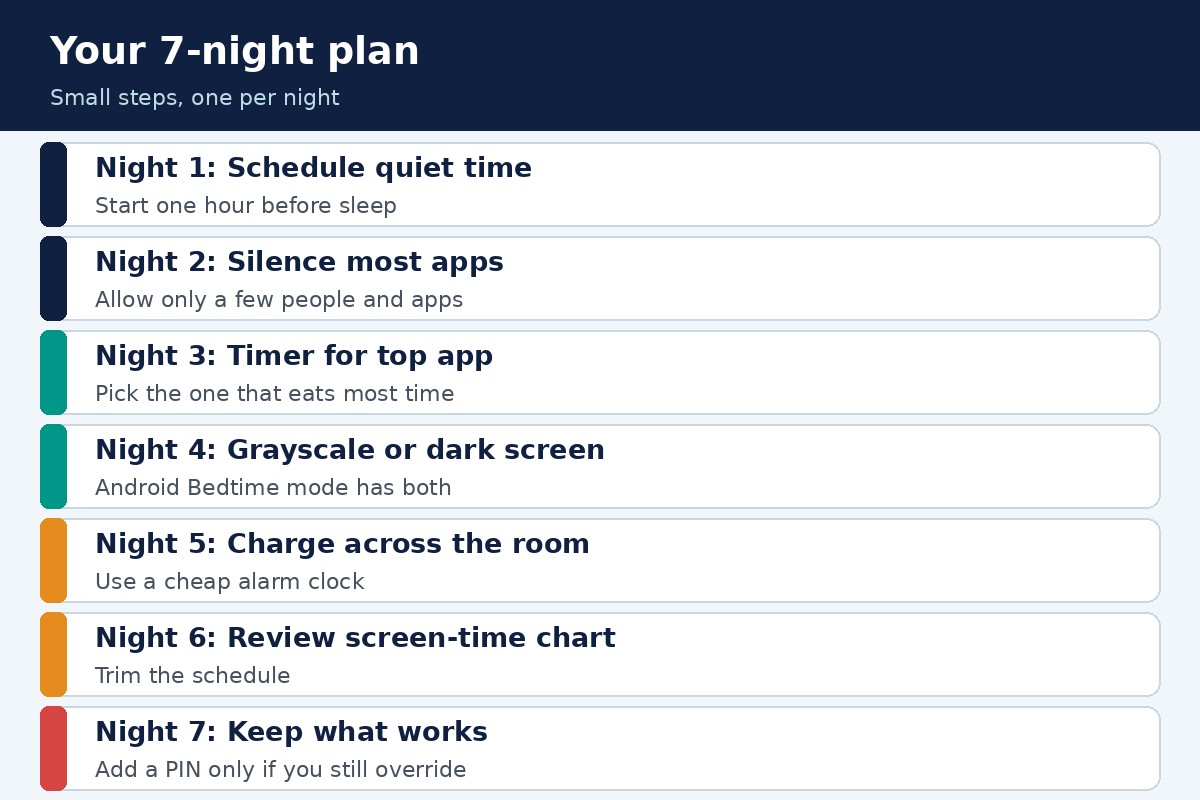
A simple 7-night plan
| Night | What to do |
|---|---|
| 1 | Set the Focus or Bedtime mode schedule for one hour before sleep |
| 2 | Silence all but a few people and apps |
| 3 | Add a timer or allowance for your top scrolling app |
| 4 | Switch on grayscale or a dark screen at bedtime |
| 5 | Charge the phone across the room |
| 6 | Review your screen-time chart and trim the schedule |
| 7 | Decide what to keep, then add a PIN or passcode if you still override |
Expect a wobbly first week. That is normal. The goal is fewer late nights, not a perfect streak.
What to do when the urge hits anyway
Urges pass. Say it out loud: “I am about to scroll.” Then do one small thing: stand up, drink some water, write the worry on paper. If you are scrolling to feel safe, remember that late-night headlines rarely change anything you can act on before morning.
If your scrolling also exposes you to scams, read my guide on how to spot AI phishing emails and how to prevent SIM swapping on Android and iPhone. Tired eyes click on things they should not. And if you ever feel your accounts have been exposed, follow this calm 48-hour plan after a data breach.
Common mistakes I see
- Setting a schedule that starts at the exact time you go to bed. Start an hour earlier.
- Allowing notifications from too many apps “just in case”.
- Using grayscale for one night, hating it and switching it off for good. Give it a week.
- Putting the charger next to the pillow, then blaming the phone.
- Skipping the weekend. Weekends are where the habit comes back.
The bottom line
You do not need to quit your phone. You need to make nighttime scrolling a choice you have to make on purpose, not a reflex. Schedule the quiet, limit the apps, make limits hard to dodge, and move the charger. That four-part setup takes about fifteen minutes and works better than any promise to yourself.
FAQ
How do I stop doomscrolling at night on iPhone?
Open Settings, tap Focus, pick a Focus such as Sleep or Do Not Disturb, and add a schedule. Then use Screen Time to set a schedule and Time Allowances for your top apps.
How do I stop doomscrolling at night on Android?
Open Settings, tap Digital Wellbeing, then set a Bedtime routine and App timers. Focus mode can pause chosen apps on a schedule.
Does grayscale really help?
It does not work for everyone, but it makes feeds less rewarding to look at. On Android you can switch it on automatically through Bedtime mode.
Can I still get urgent calls with these settings on?
Yes. On iPhone you can allow chosen people through a Focus and turn on Emergency Bypass for a contact. On Android you can limit interruptions with Do Not Disturb settings.
Should I put a PIN on my app limits?
Only if you keep overriding them. On Android you can set an App limits PIN, ideally chosen by someone you trust.