Last updated: November 5, 2026 · By Sanket Goyal
To secure smart home devices, start with your router, give every device its own strong password, turn on automatic updates, and put the gadgets on a separate Wi-Fi network. That is most of the job. You do not need to be technical, and an evening is enough.
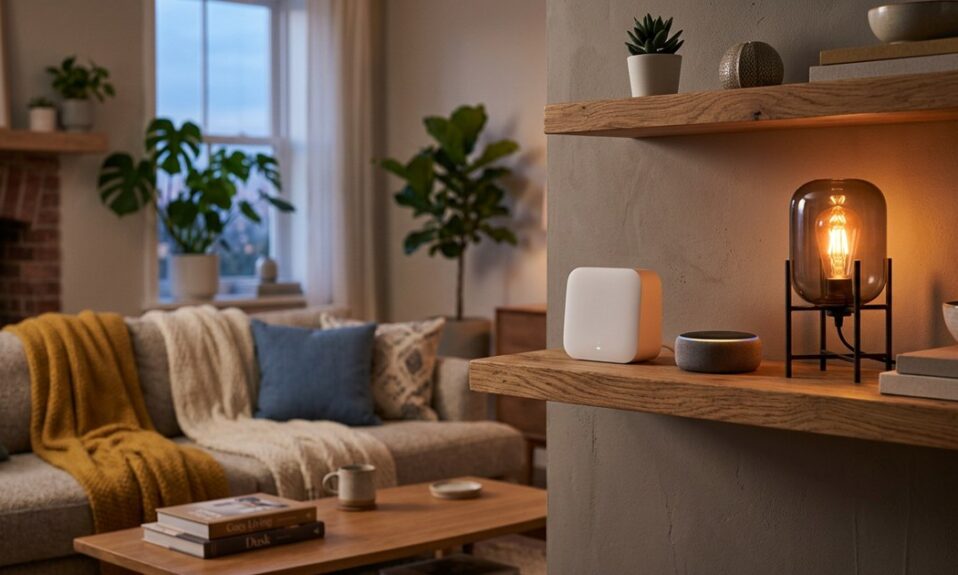
Why bother? Cameras, bulbs, TVs, plugs and speakers all reach the internet through one box in your hallway. If one cheap gadget is weak, it can become a way into everything else. “Smart” things are computers, and computers need care.
Here is the order I would follow at home. I checked each step against guidance from US government security agencies.
Step 1: Secure the router first
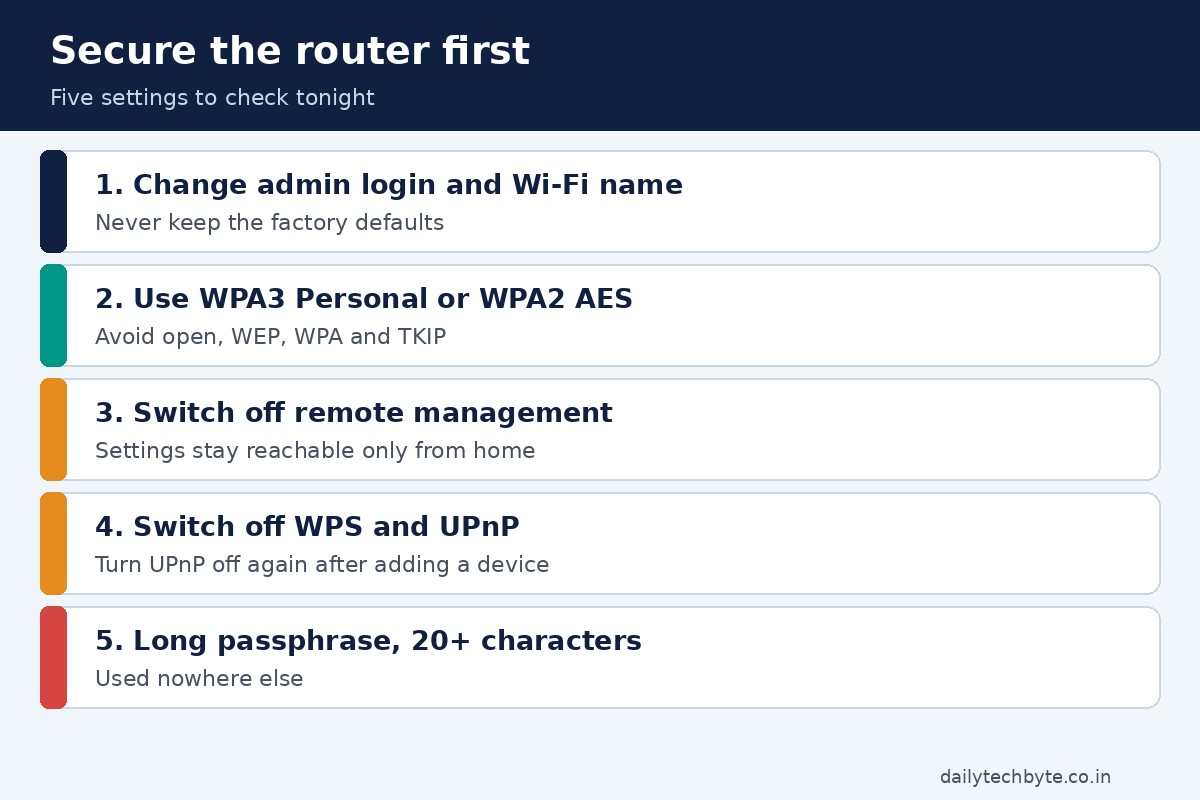
Your router is the front door. Official advice from the US consumer protection agency is to change the default admin username, password and network name to something unique, and not to use your name, address or the router brand in them.
Then check three settings:
- Encryption: the US cyber defence agency says only WPA3 Personal or WPA2 AES are safe. If your router shows open, WEP, WPA or WPA2 with TKIP, ask your internet provider for an upgrade or buy a new router.
- Remote management: switch it off, so nobody can reach the router settings from the internet.
- WPS and UPnP: switch both off. UPnP can be needed once to add a device, so turn it off again afterwards.
Step 2: Use a long Wi-Fi passphrase
A passphrase beats a clever short password. The cyber defence agency suggests 5 to 7 unrelated words totalling at least 16 characters. The US National Security Agency goes further and recommends at least 20 characters for WPA3 or mixed WPA2/3 networks. I go with 20 or more, since you type it only once per device.
Do not reuse it anywhere else.
Step 3: Give each device its own login
Picture a family with a video doorbell, a baby monitor and a smart TV. All three use the same old email password, which leaked years ago in some other site’s breach. One leak, three open doors. The US standards institute, NIST, notes that attacks on connected baby monitors have been linked back to reused passwords.
So for each device:
- Change the default username and password if it came with one.
- Use a password that you use nowhere else (a password manager helps).
- Turn on two-factor authentication if the app offers it.
If you want to see how bad reuse can get, read what to do after a data breach.
Step 4: Turn on updates
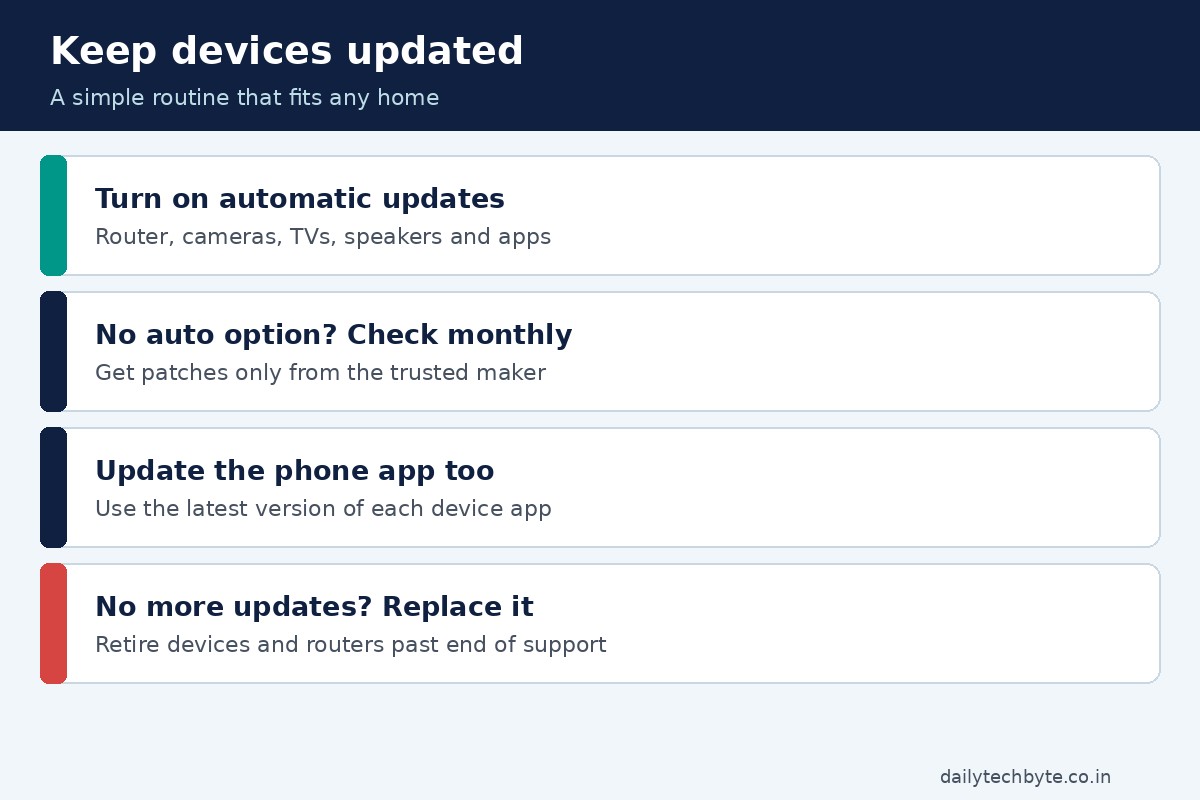
Updates often fix security holes. NIST found that many people do not even know whether their smart devices get updated. Set updates to automatic where you can. If a device cannot update automatically, the NSA suggests checking for patches from the trusted maker about once a month. Update the phone app too.
Does a device no longer get updates at all? Replace or retire it. The NSA says the same about routers that reach the end of support.
Step 5: Put smart devices on their own network
This is the step people skip, and it matters. Most routers have a guest Wi-Fi option. The cyber defence agency says to connect smart home and other IoT devices to it when they only need internet access. That stops them from discovering your laptop or phone and from reaching your router settings.
The NSA’s ideal is three networks: main Wi-Fi, guest Wi-Fi and an IoT network. If your router offers only a guest network, use it for gadgets and keep visitors off it, or give visitors a different one if you can.
Some devices need to sit on the same network as your phone during setup. If a gadget stops working on the guest network, move it back for setup, then try again.
Step 6: Switch off what you do not use
- Turn off features you will never use, such as voice ordering.
- Disable remote management on any device that offers it.
- Check privacy settings, including how long video and audio are stored and what is sent to the maker.
- Mute microphones on speakers and monitors when you do not need them.
- Remove apps you no longer use on a smart TV, since they can keep collecting data.
For cameras, also look at the access log in the settings now and then. Unknown IP addresses or odd access times are a warning sign.
Step 7: Know what is on your network and keep it tidy
Open your router’s list of connected devices (it may be called wireless clients or DHCP clients). Anything you do not recognise deserves a closer look. Disconnect old gadgets that sit in a drawer but still join your Wi-Fi, because their security may be out of date.
The NSA also suggests restarting your router at least weekly. It is a cheap habit that can clear some types of malicious code that do not survive a reboot.
Quick reference table
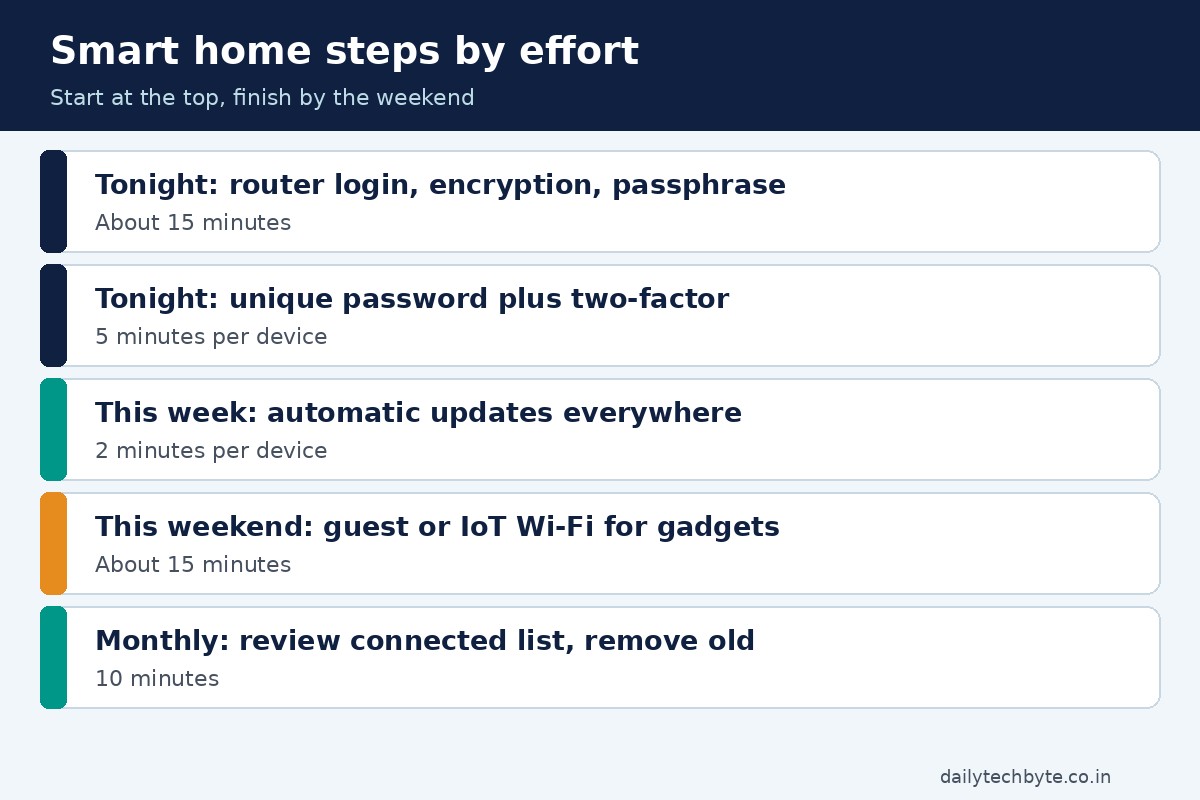
| Step | What to do | Time needed |
|---|---|---|
| Router login | Change default admin username and password | 5 minutes |
| Encryption | Use WPA3 Personal or WPA2 AES | 5 minutes |
| Wi-Fi passphrase | 20 or more characters, used nowhere else | 5 minutes per device |
| Device logins | Unique password and two-factor where offered | 5 minutes per device |
| Updates | Turn on automatic updates | 2 minutes per device |
| Separate network | Use guest or IoT Wi-Fi for gadgets | 15 minutes |
| Cleanup | Remove unused devices and features | 10 minutes |
Before you buy the next gadget
NIST suggests a little homework first. Check that everyone in your home is comfortable with the device. Then look up whether the maker has had recent security or privacy complaints, and what settings the device lets you control. If a gadget has no way to change its password or get updates, I would skip it, however cheap it is.
A strong setup still helps little if someone is tricked into giving a password away, so it also helps to know how to spot AI phishing emails. If screens also eat your evenings, try how to stop doomscrolling at night.
Common mistakes
- Keeping the router’s default admin password because “nobody will find it”.
- Hiding the Wi-Fi name and thinking it adds security. The NSA says it adds none and can cause problems.
- Reusing one password across all gadgets.
- Skipping updates because the device “works fine”.
- Leaving old devices connected for years.
The bottom line
Secure the router, use unique passwords, update, separate your gadgets on their own network, and remove what you do not use. None of it is hard, and together it closes the doors attackers use most. Do the router tonight and the rest this weekend.
FAQ
How do I secure my smart home devices?
Change default logins, use unique passwords and two-factor authentication, turn on automatic updates, secure your router, and put smart devices on a guest or separate Wi-Fi network.
Should smart devices be on a separate Wi-Fi network?
Yes, if your router allows it. It stops a weak gadget from reaching your computers and your router settings.
What Wi-Fi encryption is safe for smart homes?
WPA3 Personal or WPA2 AES. Avoid open networks, WEP, WPA and WPA2 with TKIP.
How often should I update smart home devices?
Use automatic updates where available. Otherwise check for updates from the maker about once a month.
What should I do with a smart device that no longer gets updates?
Replace or retire it. Without updates, known security holes stay open.